Bilgisayar Çalışıyor Ama Ekrana Görüntü Gelmiyor! – 6 Maddede Çözüm
İçindekiler
Bilgisayar Açılıyor, Ekran Gelmiyor
Bilgisayarınıza ekran gelmiyor diyorsanız bunun bir çok nedeni olabilir. Ama asıl önemli olan bilgisayarınızın açılmamasına etki eden olayın ne olduğunu bulmaktır. Bu olayı da deneme yanılma yolu ile bulabilirsiniz .
Şunu söylemeliyim ki elinizde yeterli ekipman yoksa bu olayı anlamanız biraz sizi zorlayabilir. Bilgisayarınıza ekran gelmemesinin nedeni çoğunlukla donanım kaynaklıdır. Donanım kaynaklı sorunlarda bilgisayarınızın bileşenlerini değiştirip denemekten başka bir çareniz yoktur. Eğer yazılımsal bir problemse zaten çözümü kolay olacaktır.
Bilgisayar Ekran Gelmeme Nedenleri
Bilgisayarınızın ekranının gelmemesinin nedeni büyük ihtimalle işlemcinizden kaynaklanmaktadır. Tabii ki her ekran gelmeme sorununu işlemciye bağlamamak gerekir. Ekran kartının yanması, anakartın yanması, Powerin gereğinden fazla voltaj vermesi gibi ciddi sorunlar nedeniyle de ekran gelmiyor olabilir.
Bunların yanında HDMI, VGA vb. monitöre giden kablolarında yıpranması sonucu bu hata ile karşı karşıya kalabilirsiniz. Ve yine monitöre giden kabloların girişlerinde oluşan problemlerden de bilgisayarınız etkilenebilir. Bunların yanında monitörünüzün de bozulmuş olma olasılığı da olabilir.
Bu gibi teknik sorunların çözümü deneme yanılma yoludur. Mesela monitörünüzden şüphe duyuyorsanız, başka bir monitör kullanarak test edebilirsiniz. Eğer başka bir monitör denediğinizde bilgisayarınıza görüntü geliyorsa ana monitörünüz bozulmuş demektir. Bunun gibi basit deneme yanılma yollarıyla sıkıntınızı giderebilirsiniz.
Monitöre Ekran Gelmemesinin Nedenleri Ve Çözümü
1-Statik Elektrik
Statik elektrik bilgisayarınıza ekran gelmemesinin başlıca nedenlerinden olabilir. En önemli madde olmasına rağmen bilgisayar kullananların çoğu bunun bilgisinde değildir.
Statik elektrik: Vücudunuzda bulunan elektriğin bilgisayarın donanımlarına aktarılmasına denir.
Bu durumun nasıl gerçekleştiği aslında bariz belli. Bilgisayarınızın donanımlarını sök-tak yaptığınız zaman elinizle anakarta, Ramlara, ekran kartına veya farklı donanımlara dokunursunuz.
Elinizle dokunduğunuz donanımlar müthiş bir iletken olduğu için vücudunuzdaki elektrik akımı dokunduğunuz donanımlara geçer. Bilgisayarın donanımlarına yüklenen elektrik akımı bilgisayarınızın açılmasını engelleyebilir.
Bunun önüne geçebilmek için bilgisayar aksamlarını sök-tak yaparken plastik eldiven kullanmaktır. Diyelim daha önceden sök-tak yaptınız ve bilgisayarınız statik elektrikten dolayı açılmıyor. Bunu nasıl düzelteceksiniz ?
Aslında statik elektriğin tam anlamıyla ilacı bilgisayarınızın tüm donanımlarını tek tek yıkamaktır. Evet doğru okudun yıkamak. Bu biraz sana saçma gelebilir ama statik elektriği tam anlamıyla boşaltmak istiyorsan bilgisayarının donanımlarını tek tek yıkamalısın.
Yıkamamanız sizin için çok daha iyi olacak çünkü eğer bilgisayar donanımlarında kurumayan tek bir nokta kalması durumunda bilgisayarınız kısa devre yapar ve yanar.
Bunun alternatifi olarak bilgisayarınızın çok daha kolay ve zahmetsiz statik elektriğini boşaltabileceğiniz bir yol var.
- Bilgisayarınızı kapatın.
- Bilgisayarınıza takılı olan her şeyi çıkarın.(Elektrik, mouse, klavye vb.)
- Power tuşuna ard arda 4-5 defa basın.
- En son bir kez daha power tuşuna basın ama bu sefer basılı tutun bırakmayın.
- 10 saniye bekledikten sonra parmağınızı çekin.
- Bütün her şeyi tekrar takarak bilgisayarınızı açın.
Eğer bu işlemleri yaptığınız zaman bilgisayarınıza hâlâ ekran gelmiyorsa diğer adımları deneyin.
2-İşlemcinin Yanması
İşlemcinin yanması çok ama çok nadir görülen bir şeydir. Çünkü işlemci belirli bir ısıya ulaştığında kendini otomatik olarak kapatır. İşlemcinin yanma nedeni ise büyük bir ihtimalle kısa devre olacaktır.
Daha önce işlemcinizi çıkarıp tekrar taktıysanız yerine oturtamamış olabilirsiniz. İşlemci pinleri yuvadaki kısma tam yerleşemediğinden kısa devre yapmış ve yanmış olabilir.
Başlangıçta herhangi bir bios sesi (bilgisayarı açarken diiit diye öten ses) duymadıysanız büyük bir ihtimalle işlemcinize veda etmişsinizdir. Elinizde bir tane yedek işlemciniz varsa onu bilgisayarınıza takıp denemeniz gerekmektedir. Eğer işlemciniz yoksa aşağıdaki adımları teker teker uygulayıp sorunun işlemcinizde olup olmadığını anlayabilirsiniz.
3-Ekran Kartının Yanması Veya Tam Oturmaması
Monitöre ekran gelmemesinin bir diğer sebebi de ekran kartının yanması veya tam oturmamasıdır. Eğer tam oturmamışsa zaten büyük ihtimalle kısa devre yaparak yanmıştır. Bu durum genellikle daha önceden çıkartılıp takılan ekran kartlarında yaşanmaktadır.
Daha önceden ekran kartını çıkarıp takmamışsanız yine test amaçlı ekran kartını yerinden dikkatlice söküp takın. Takmadan önce bir silgi yardımıyla ekran kartının anakartla birleşen çip kısmını temizleyin.
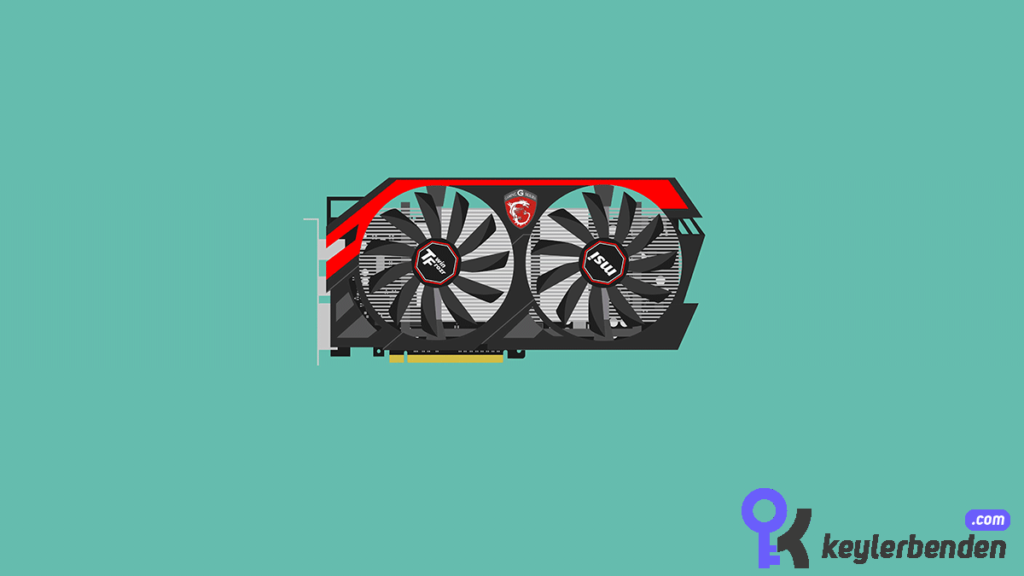
Ekran kartını sökmeden önce bilgisayarınıza giden bütün elektriğin kesildiğinden emin olun. Aksi taktirde sağlam olan ekran kartına kısa devre yaptırarak veda edebilirsiniz.
Ekran kartını söküp temizliğini yaptıktan sonra tekrar yerine takın. Bilgisayarınızın gerekli olan malzemelerini tekrar yerine koyarak bilgisayarınızı çalıştırmayı deneyin.
Eğer bilgisayarınıza yine görüntü gelmiyorsa başka bir ekran kartı bulup takmayı deneyin. Eğer farklı bir ekran kartı bulamayacak durumdaysanız diğer maddeleri uygulayın.
4-Ramlerin Tam Oturmaması Veya Bozuk Olması
Çoğu zaman insanların aklından dahi geçmeyen problem çeşitidir. Bilgisayarınıza ekran gelmemesinin nedeni ramleri bilgisayarınız tam okumuyor olması olabilir.
Ama ben ramlere hiç daha önce dokunmadım diyor olabilirsiniz. Bu durum sadece ramleri söküp taktığınızda meydana gelmez. Tozlanmalarda buna neden olabilir. Zamanla ram kenarlarında toz birikir ve temassızlığa sebebiyet verebilir.
Bunda izleyeceğiniz yol ramleri çıkarıp takmak olacaktır. Çıkardıktan sonra silgi kullanarak çip kısmını iyice temizleyin. Zaten ramden kaynaklanan bir sorun varsa şayet anakart Bios sesi ile uyarı verecektir. Ses ile uyarı vermese dahi siz yine ram temizliği yapın.
5-HDMI Veya VGA Kablosunun Zarar Görmesi
Bilgisayar ile monitörün bağlantısını sağlayan kabloların zarar görme olasılığı yüksektir. Kablolar yumuşak maddeler oldukları için en ufak ezilmede hemen yıpranırlar.
HDMI Veya VGA kablosunu iyice kontrol edin herhangi bir yerinde yıpranma veya yırtık var mı diye. Eğer hiç yıpranma yoksa giriş kısımlarına bakın VGA kablolarında giriş kısmında pinler mevcuttur.
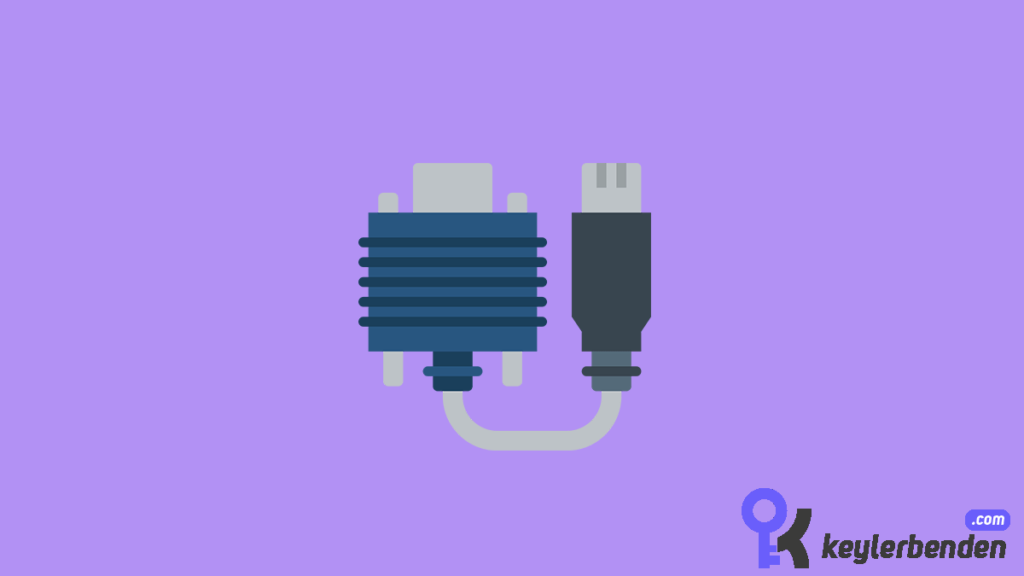
Eğer pinlerden herhangi biri zarar görmüşse büyük ihtimal o yüzden ekrana görüntü gelmiyordur. Eğer görünürde herhangi bir problem yoksa kabloları başka bir bilgisayarda deneyerek test edin veya yerine başka bir kablo getirerek deneyin.
6-Power Yanması
Power yanması çok karşılaşılan bir durum değildir ama ekran gelmemesinin en büyük nedenlerindendir. Ekran gelmiyor diyorsanız poweri kontrol etmeden kesin bir teşhis koymak doğru olmaz.
Eğer bilgisayar aksamlarını sökecek yeteneğe sahipseniz bilgisayarınızın trafosu olan poweri yerinden sökün. İlk başta koklayın yanık kokusu var mı yok mu diye. Genel olarak çalışsa da yanık kokarlar. Siz burada ağır bir yanık kokusu var mı yok mu onu kontrol edin.
Eğer ağır bir yanık kokusu varsa muhtemelen powere el sallamak zorunda kalacaksınız. Powerin yanıp yanmadığını anlayabilmenizin tek yolu yerine başka bir power takıp denemektir.




merhaba benim bunun gibi bir sorunum var bu konuda yardımcı olabilir mi siniz. eski hp probook bir laptopum var win 11 yüklüydü . sildim ve win 7 yükleyip bütün bios güncellemesini yapmak istedim ve win 7 kurdum driverleri yükledim. bu arada laptopumun bataryası ölü olduğu için pilde değil de prizde takılı kullanıyorum. tam bios update yüklerken %50 seviyesindeyken elektrik gitti bios tam yüklenmeden laptop kapandı şimdi açılmıyor. tahminimce bios tam yüklenmediği için ana sistemde yüklenmiyor fan anakart çalışıyor ses geliyor ama ekran açılmıyor herhangi bir uyarıda vermiyor ama çalıştığını fark ediyorum. anlatılanlarla statik elektrik alma işlemlerini yaptım ama yine de açılmıyor ekrana hiç görüntü gelmiyor ne yapabilirim yardımcı olur musunuz.
Öncelikle geçmiş olsun kardeşim. BIOS, anakarta bütün donanımları tanıtan ve nasıl çalışması gerektiği konusunda bilgi gönderen bir yazılımdır. Güncellemek çok titizlik ister. Senin gibi yarıda kesilme durumlarından muzdarip olan arkadaşlarımız sadece Anakartı servise göndererek bu problemin üstesinden gelebilir. Yani kendi imkânlarınla herhangi bir şey yapabilmen söz konusu değildir. Servise göndermelisin aksi halde anakartını kullanamazsın.